
The Cintiq Pro 27 ships without a stand, so every owner has to decide what holds this 7.2 kg (15.9 lb) screen. You can use a stand that sits on the desk or an arm that attaches to it. This guide compares the two built for drawing on this screen, Wacom’s Cintiq Pro 27 Stand and our XOOT_Pro, then the general monitor arms.
Disclosure: we make XOOT_Pro. We also own and have tested a Wacom Cintiq Pro 27 Stand; the pros and cons below come from using both.
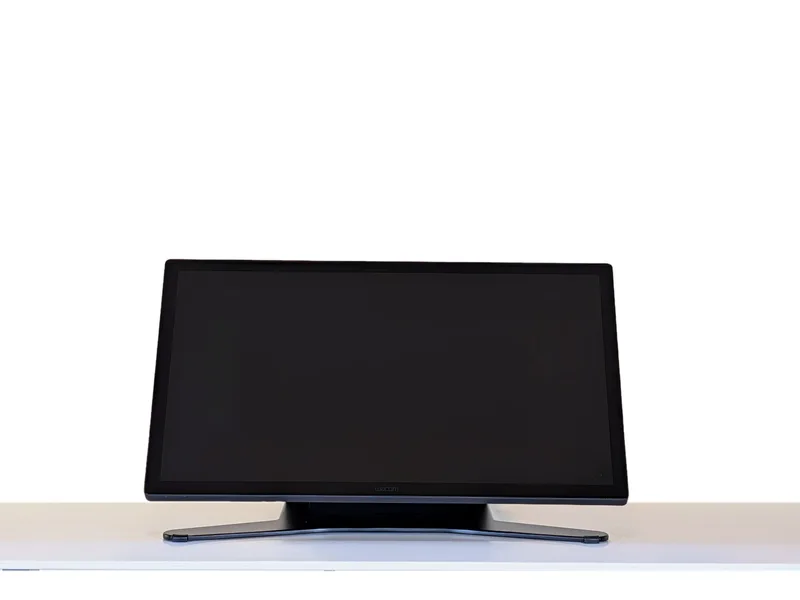
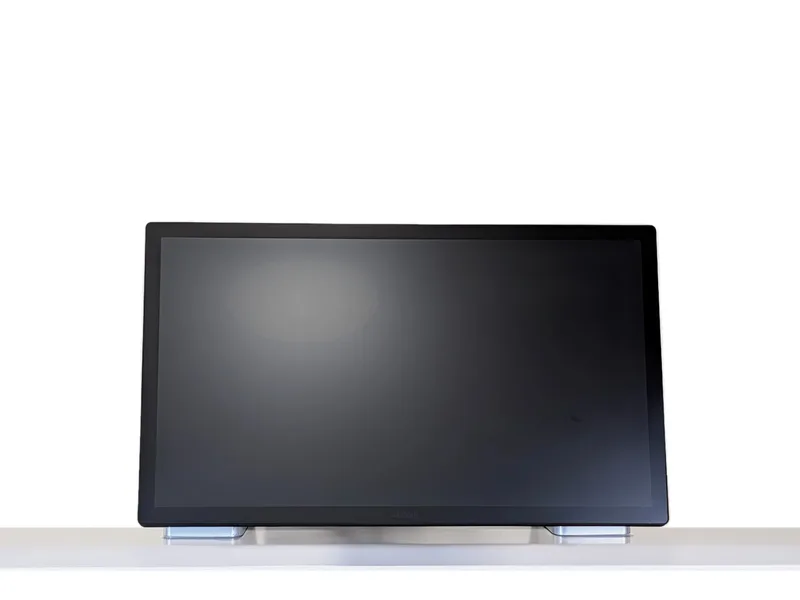
First: does it sit on the desk, or attach to it?
A stand sits on the desk, so you can put it on any desk and move it to another. An arm attaches to the desk in one of two ways:
- A clamp needs a free desk edge, with nothing in the way underneath, and a desktop thin enough for the clamp.
- A grommet or bolt-through mount needs a hole through the desktop. You can use an existing cable hole or drill one.
| Option | How it attaches | Price (Oct 2026) |
|---|---|---|
| Wacom Cintiq Pro 27 Stand | Sits on the desk. No clamp. | $500–550 |
| XOOT_Pro | Desk clamp, grommet, or optional Through Desk Clamp, sold separately | $650 (Pro 27 kit) |
| Wacom Flex Arm + ACK64804KZ adapter | Desk clamp, or screwed into the desktop | $530–560 |
| Ergotron LX / HX | Desk clamp or grommet hole; both come in the box | $175–260 / $300–460 |
| Humanscale M8.1 | Clamp or bolt-through, sold as separate versions | $509 list price (2023) |
Wacom Cintiq Pro 27 Stand vs XOOT_Pro
Wacom Cintiq Pro 27 Stand
Good- It doesn’t clamp to the desk, so it’s easy to place on any desk.
- The main arm and the screen angle adjust independently, so you can set a wide range of screen angles.
- Its rubber feet make it hard to slide around the desk.
- It rotates only ±20°, so it can’t turn the screen to portrait.
- It attaches to an aluminum plate that bends under pressure, which can make the screen wobble.
- The base stops the screen from reaching far over the desk edge.
- To move the main arm or the screen, you reach behind the screen to release a lever, change the angle, then reach around again to lock it.
- Even unlocked, the main arm is hard to move, because its pivot at the base has a lot of friction.
XOOT_Pro
Good- A touch-activated lock: when unlocked, the arm and screen move weightlessly, and when you let go they lock in place.
- The screen is made to travel over your keyboard, so you never have to move the keyboard out of the way.
- The screen rests on slippery plastic pads, so it slides easily on the desk.
- The screen can reach far out over the edge of the desk.
- Customizable: raise the screen with leg spacers, or add attachments such as a webcam holder.
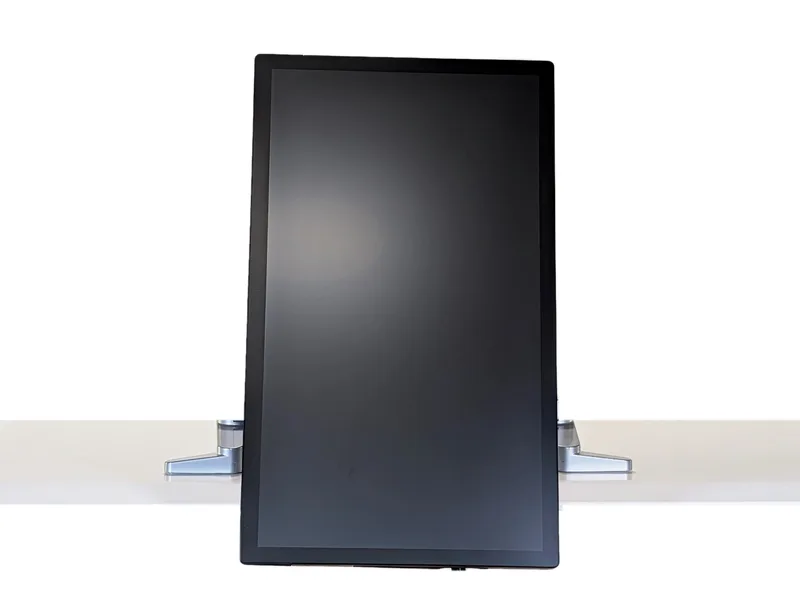
- Screen rotation up to ±174°, with rotation friction you can adjust.
- Upgradeable: if you buy a new screen, a kit from $150 moves the arm to it.
- It must attach to the desk, so its forward reach is limited without grommet or through-hole mounting.
- The screen angle can’t be set independently of the main arm. For example, you can’t lay the screen flat while the arm is high. That’s the trade-off for fast, easy adjustment.
Position by position
Turned as far as it goes
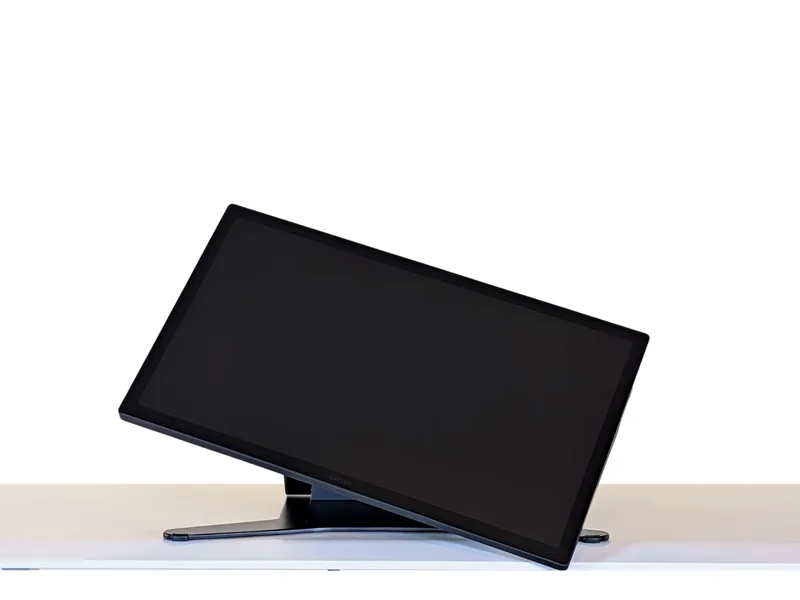
Screen at about 45°
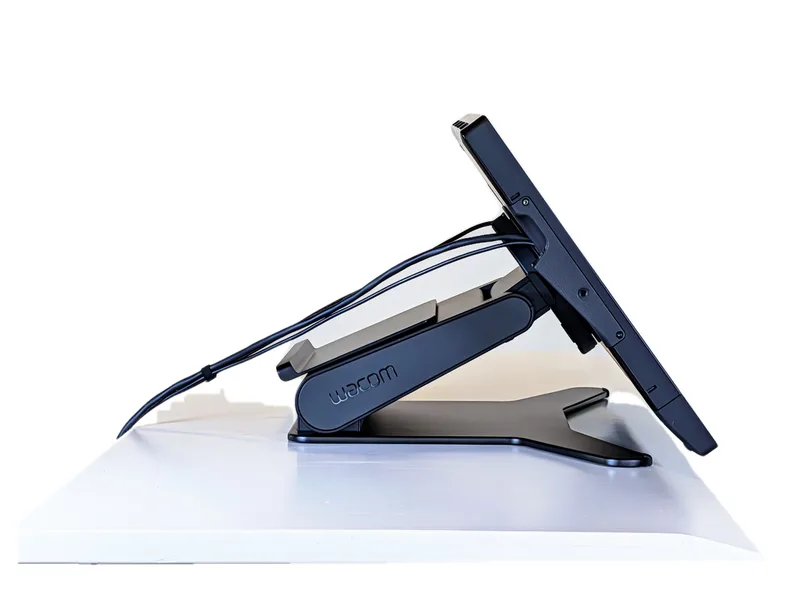
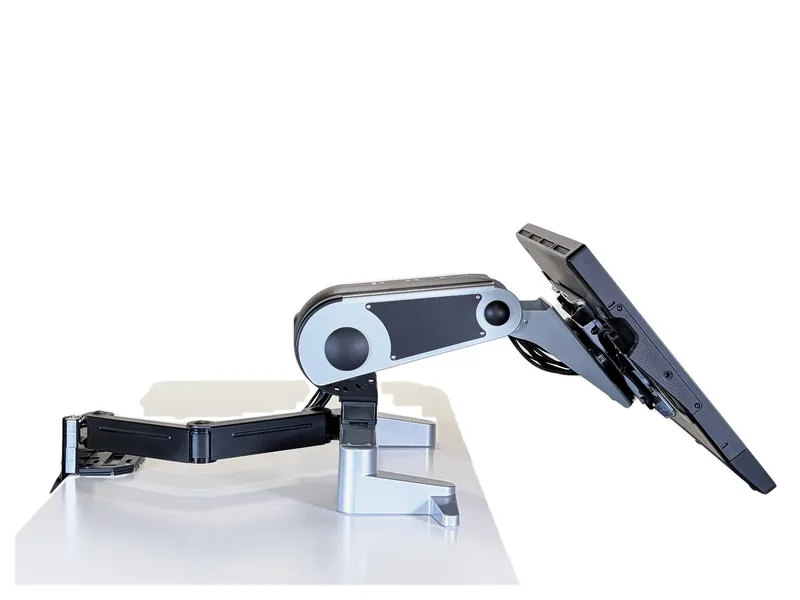
Lowest position
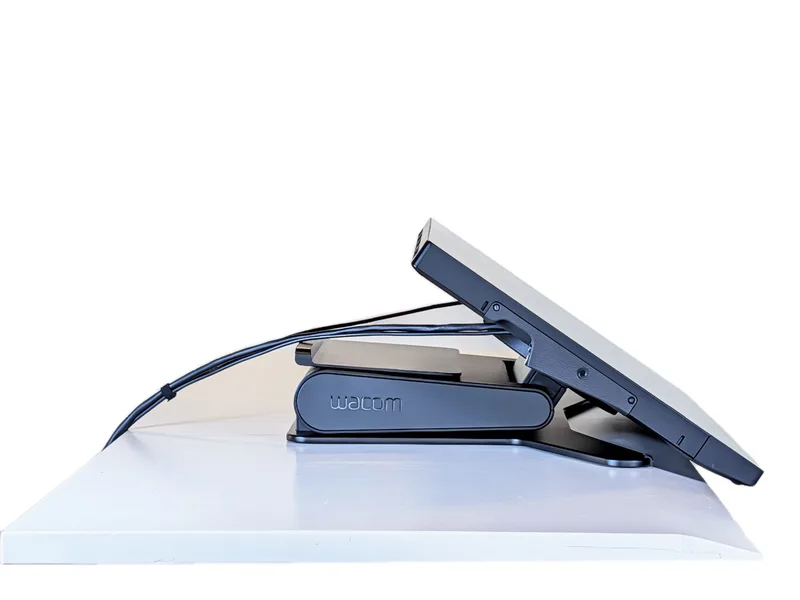
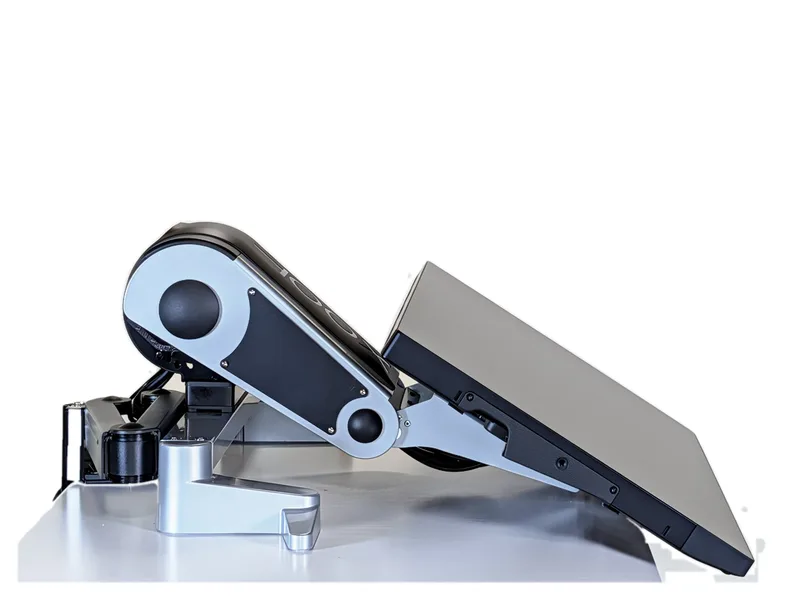
Highest position
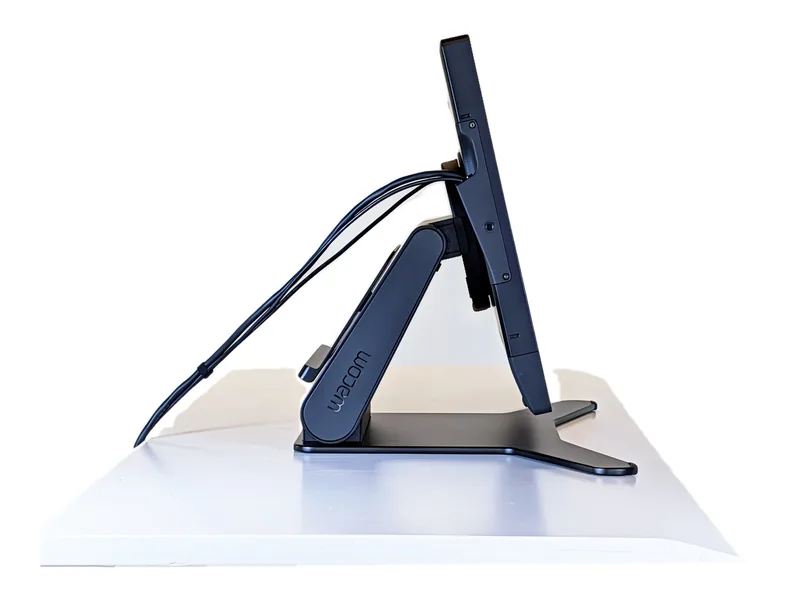
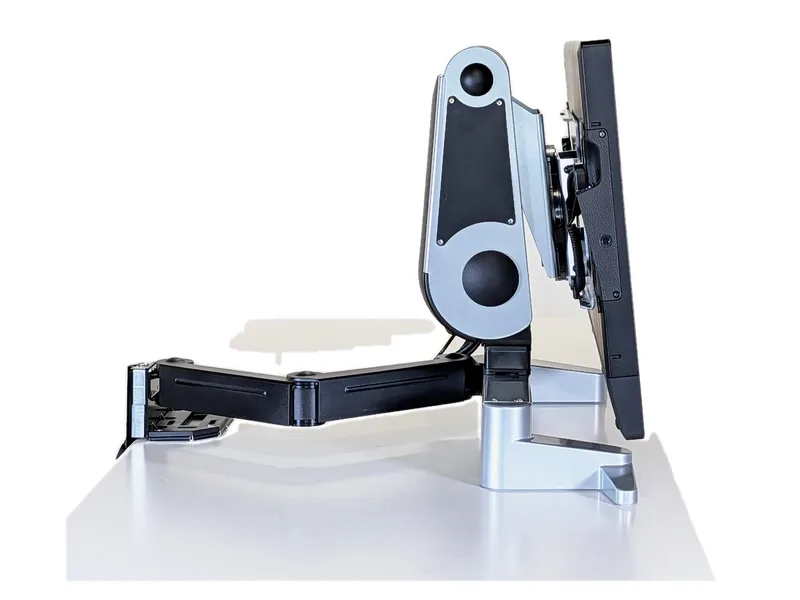
What only one of them does
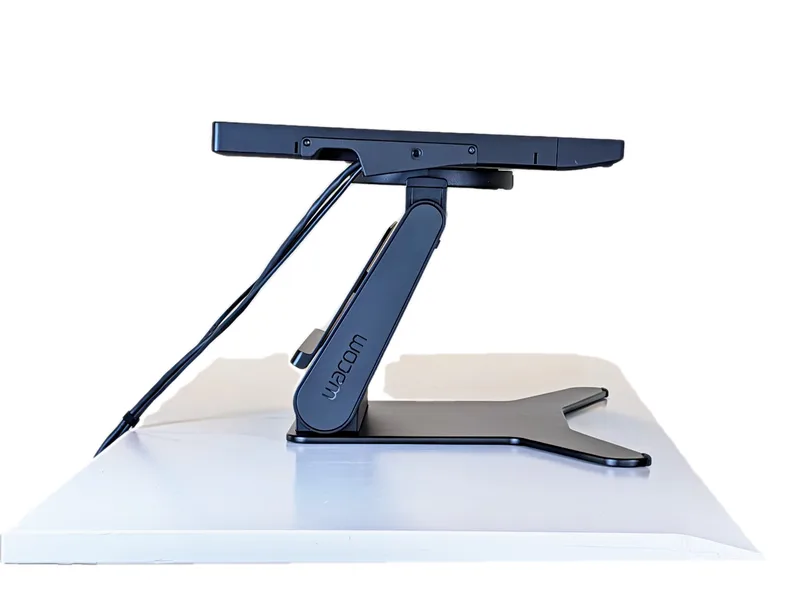
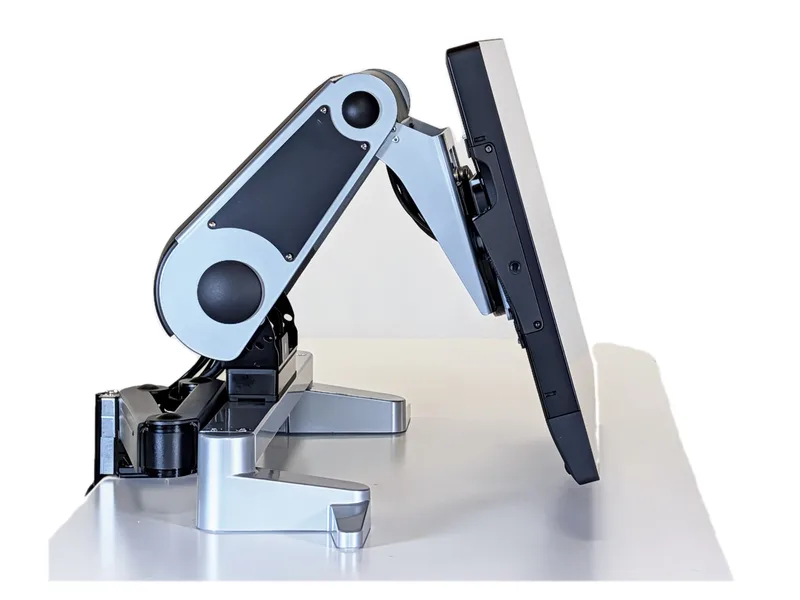
See them in use
XOOT_Pro: touch to unlock, move over the keyboard and out past the desk edge, then let go to lock (40 seconds).
Our hands-on look at the Wacom Cintiq Pro 27 Stand: the lever lock and the stiff pivot at the base (3 minutes, from our full comparison video).
Which one suits you?
What about general monitor arms?
The Wacom Flex Arm, the Ergotron LX and HX, and the Humanscale M8.1 are built mainly to hold a monitor at eye height. They can lower, tilt and rotate a screen, but a few things matter when you draw on one:
- Weight range. Spring arms such as the Ergotron LX and HX are rated for a weight range. The screen plus its mount has to fall inside it, or the arm drifts up or sags.
- Friction joints. Tilt and swivel are held by friction, and friction joints wear and need adjusting from time to time.
- Leverage on the clamp. A monitor arm holds the screen out from a small clamp at the back of the desk, so pressing on the screen with a pen puts a large force on the clamp, and how steady it feels depends a lot on your desk. See our deep dive on anti-topple arms.
A bare Pro 27 weighs 15.9 lb, which is below the HX’s 20 lb minimum. The Flex Arm also needs Wacom’s ACK64804KZ adapter, and in 2026 it is hard to find.
The details
| Rotates to portrait | Holds position with | Rated load | |
|---|---|---|---|
| Wacom Pro 27 Stand | No (±20°) | A lever lock | Made for the Pro 27 |
| XOOT_Pro | Yes (up to ±174°) | Touch-activated brakes | A kit made for the Pro 27 |
| Wacom Flex Arm | Yes | — | See Wacom’s guidance |
| Ergotron LX | Yes | Spring | 7–25 lb |
| Ergotron HX | Yes | Spring | 20–42 lb |
| Humanscale M8.1 | Yes | Spring | 6–28 lb |
Prices checked October 26–27, 2026: CDW for the Flex Arm and the Pro 27 Stand, Wacom for the adapter, and Ergotron retailers; the Humanscale M8.1 figure is its 2023 list price. Mounting options come from the makers’ and retailers’ listings. — = not stated by the maker.
Kits: Cintiq Pro 27 · all screens